Thu 26 Nov 2026 · 12:33 · 3 min read
"A Connector With This URL Already Exists": Connecting a Second Adyli Blog to Claude
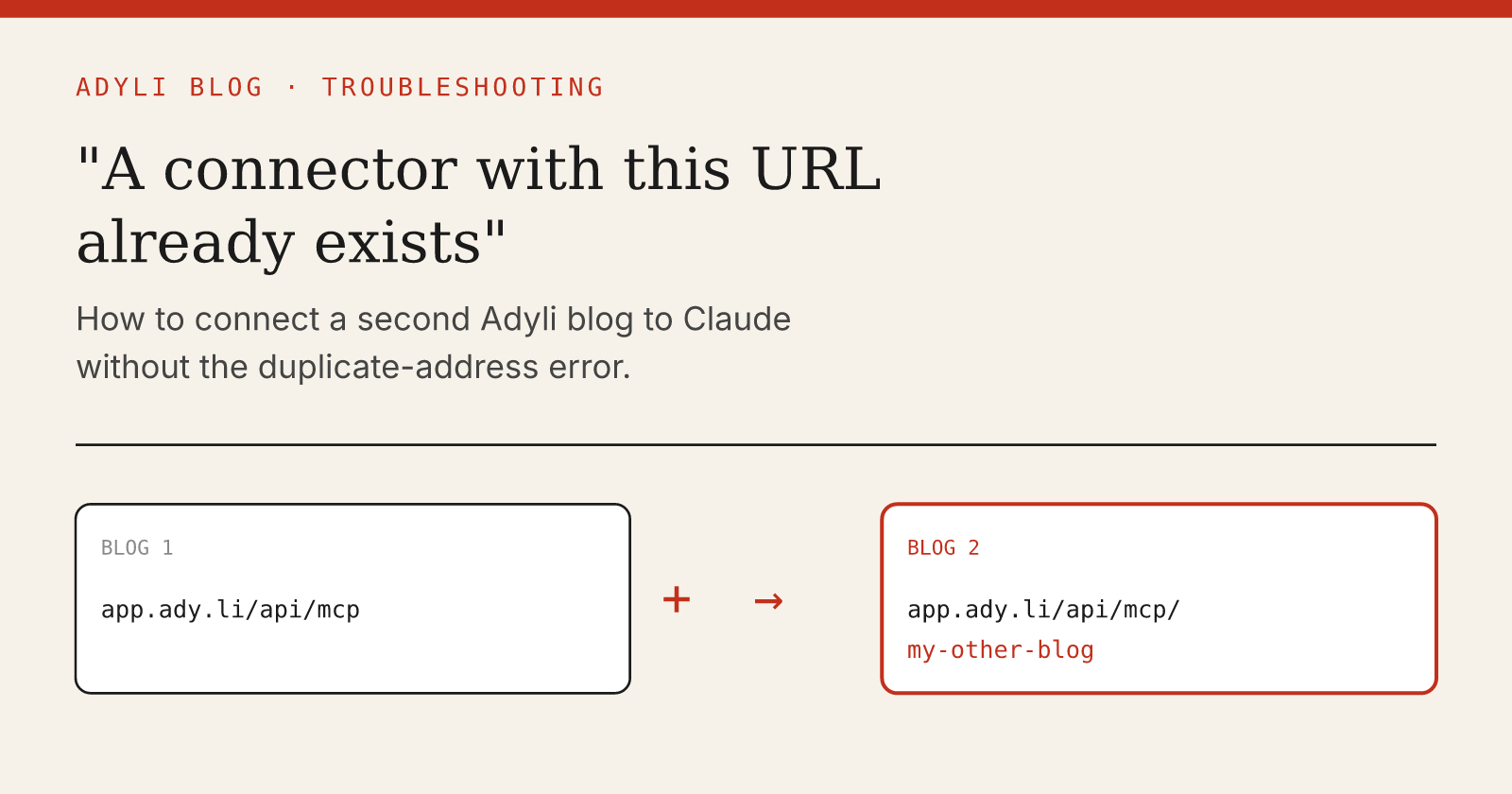
Adding a second Adyli blog to Claude can fail with a duplicate-connector message. The fix is one extra word on the end of the address: the blog's slug.
You connected Adyli to Claude once and it worked. Then you started a second blog, went to add it, and Claude stopped you with this:
A connector with this URL already exists in your organization. Use the existing connector instead of adding it again.
Nothing is broken. This is how Claude treats addresses, and there is a one-word fix.
Why it happens
Adyli gives every blog the same connector address: https://app.ady.li/api/mcp. Claude won't let you add two connectors with an address it already has, so the second attempt is refused. The message tells you to reuse the existing connector, but that one is signed in to your first blog.
The fix: add the blog's slug to the address
If you have one blog, use the plain address. Nothing changes.
If you have another blog, add a second connector with the same address plus a label on the end. The blog slug is the natural label:
https://app.ady.li/api/mcp/my-other-blog
The Connect page suggests exactly this address for you, so you can copy it from there.
What the label does, and what it doesn't
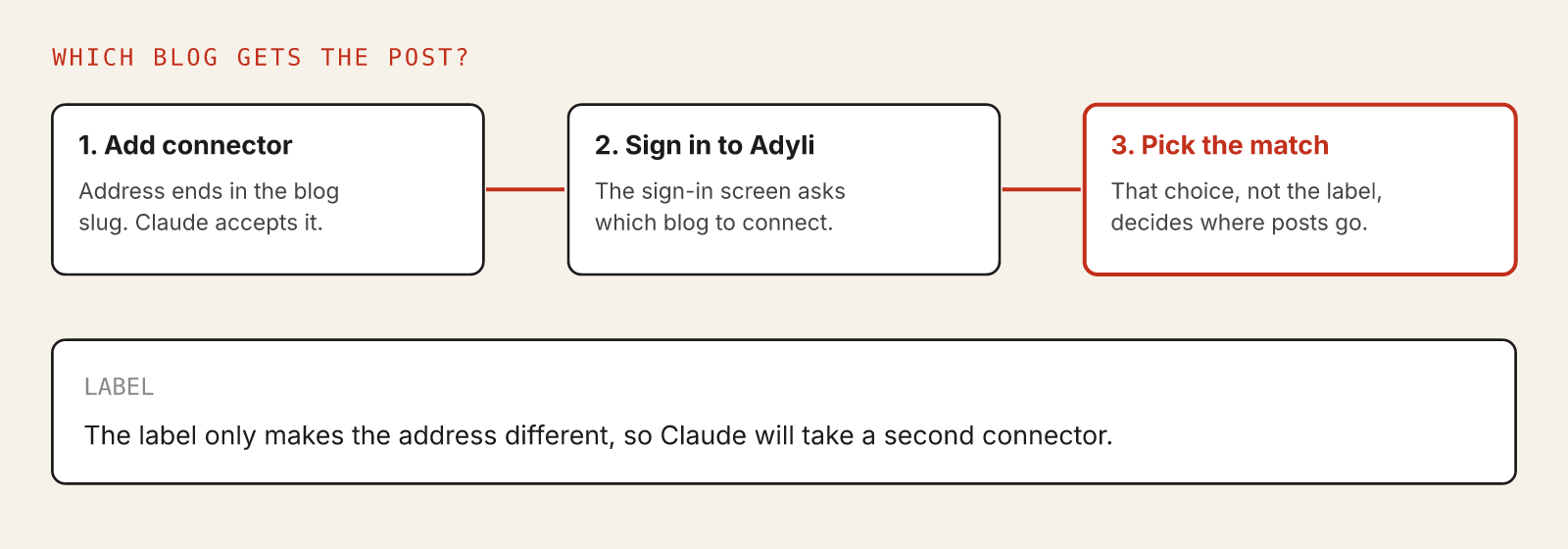
The label exists only for Claude. Because the address is now different, Claude accepts it as a new connector. That is its whole job.
The label does not choose the blog. The blog you pick on Adyli's sign-in screen does that. So when you sign in through the my-other-blog connector, pick my-other-blog on that screen. If you pick a different blog, the connector will write to the one you picked, whatever its address says.
Set up your next blog on Adyli →
Step by step
- Open your second blog's Connect page in Adyli and copy the address it shows. It ends in the blog's slug.
- In Claude, add a custom connector. Give it a name you will recognise, such as
Adyli – my-other-blog, and paste the address. - Sign in to Adyli when Claude sends you there.
- On the sign-in screen, pick the blog that matches the label.
- Click Allow, then turn the connector on from the + menu in your chat.
Questions you might have
Do I have to keep the plain address? No. If you like, give every blog its own slug address and skip the plain one. Some people prefer that because every connector then names its blog.
How long can a slug be? Up to 63 characters.
Can I reuse the first connector for the second blog? The first connector is signed in to the first blog, so posts would go there. Add a second connector instead.
Quick checklist
- One blog:
https://app.ady.li/api/mcp. - A second blog: the same address plus
/and the blog's slug. - Pick the matching blog on the sign-in screen.
- Name each connector after its blog so you can tell them apart in Claude.
If something still won't connect, the troubleshooting guide on this blog covers the other common problems.
Ready to run more than one blog?
Sources