Thu 26 Nov 2026 · 10:24 · 2 min read
Calendar and Scheduling on Adyli: How a Post Gets a Date
A post can get its date from your agent, from you, or from approval. All of them go out at your daily publish time. Here is how the calendar, publishing days and time zone fit together.
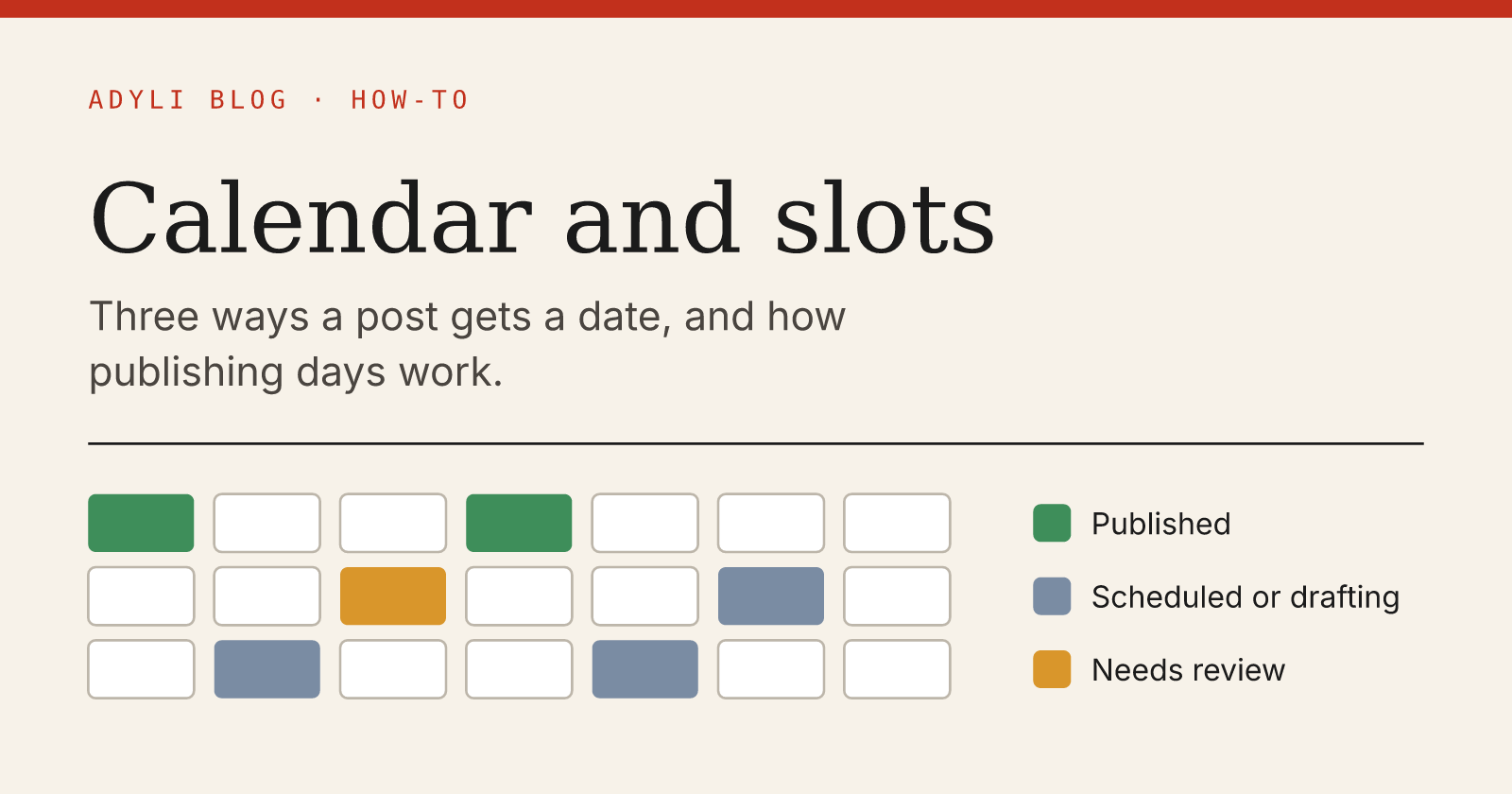
Posting steadily is mostly a scheduling problem. If every post needs a date picked by hand, the blog goes quiet the first busy week. Adyli handles it with slots, and the calendar shows you what is filled.
The calendar
Open Calendar. It shows a month grid, and the arrows move between months. Click a post to open it. A day marked "Nothing planned" has no posts.
The colours mean:
- Published: green.
- Scheduled or drafting: grey-blue.
- Needs review: amber.
How a post gets a date
There are three routes, and they can be mixed.
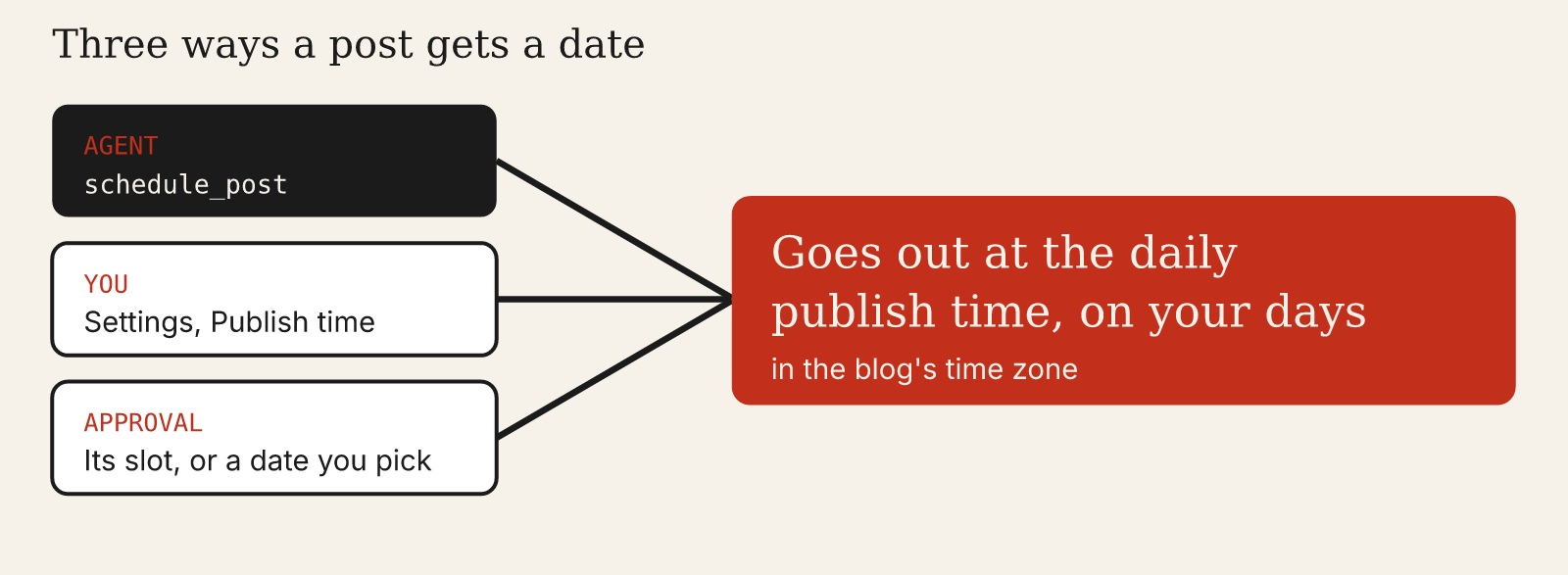
- Your agent calls
schedule_postwith an ISO date and time, for example2026-12-01T06:00:00Z. With no date, the blog's next open publishing slot is used. - You open the post and set Settings, then Publish time.
- Approval sets a queued post to its slot, or you can choose a date when you approve it.
Publishing days and time
Set these in Team, under Blog settings:
- Daily publish time, in the blog's time zone.
- The days posts go out on. Free has none by default, Writer defaults to Monday and Thursday, and Desk and Newsroom default to every day.
Time zone
Every time in the app is in the blog's time zone, which is shown next to the field. You can change the time zone in Team, under Blog settings.
A quick way to fill the calendar
Ask your agent: "Schedule three posts for the next three open slots." Then open Calendar and check the result. Posts still pass through the approval queue unless you have turned that off, so scheduling does not skip your review.
Next step
Open Team, then Blog settings, and check that the daily publish time and the days match how often you actually want to publish.
Sources
- Adyli calendar and scheduling guide · ady.li