Thu 26 Nov 2026 · 10:23 · 2 min read
The Editor and Revisions on Adyli: Edit Any Post and Roll Back Any Change
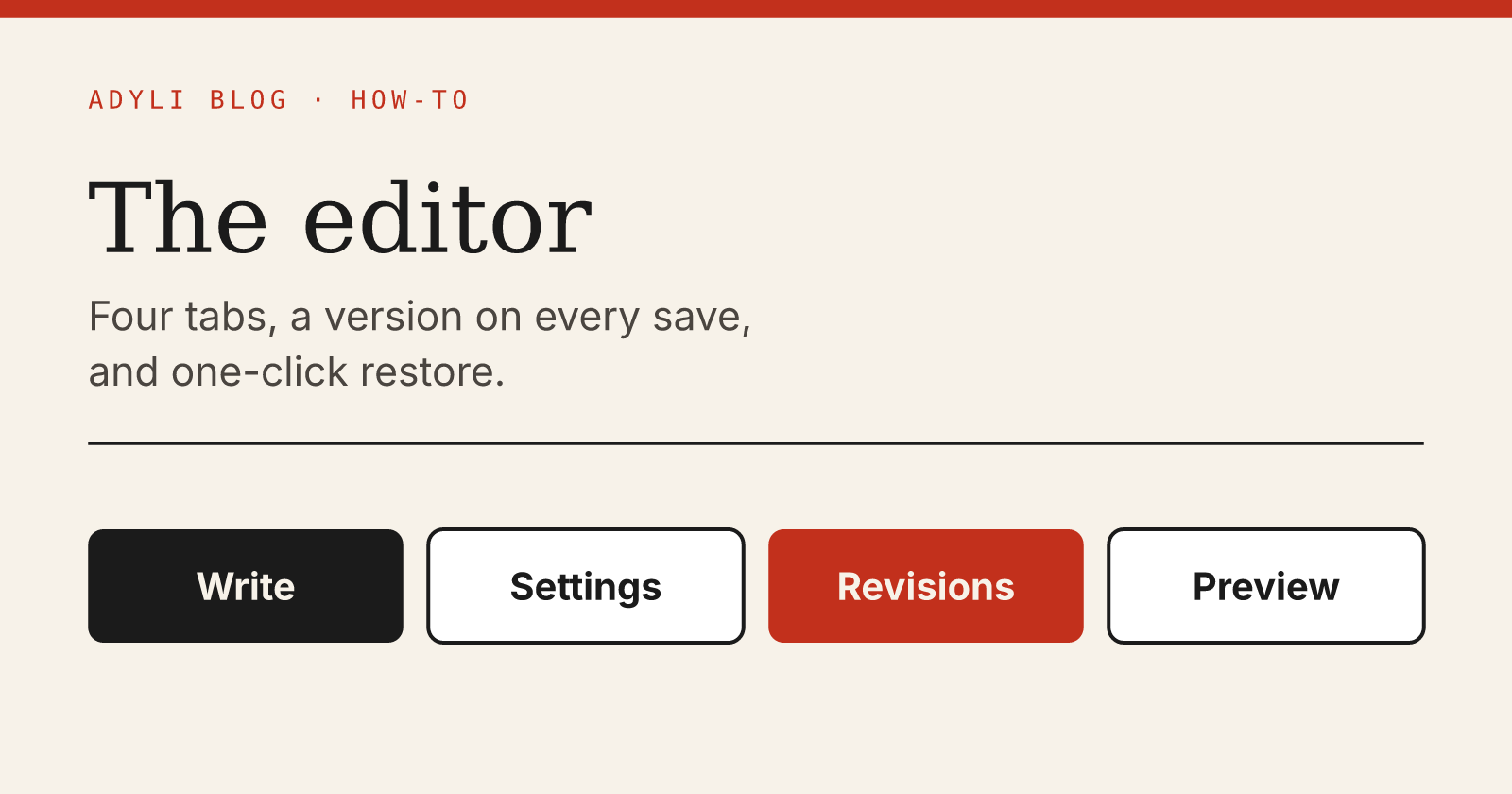
Every post has four tabs: Write, Settings, Revisions and Preview. Every save and every agent edit becomes a version you can compare and restore. Here is how the editor works.
The approval queue lets you decide whether a post goes live. The editor is where you decide what it says. If your agent's draft is close but not right, you do not need to send it back and wait. Open it and change it.
Open any post from All posts, or from the queue. It has four tabs: Write, Settings, Revisions and Preview.
Write
The Write tab holds the title, the Excerpt (one or two sentences readers see first) and the body.
- The body is Markdown. The toolbar gives you Bold, Italic, H2, H3, quote, bulleted list and Image, which inserts from your media library.
- Cmd/Ctrl + S saves a version.
- Select a passage to use AI help: Rewrite in my voice or Find a source.
You can edit any post, whoever wrote it, you or an agent. The exception is a team viewer, who cannot edit.
AI edits
Each use of AI help on selected text costs one AI edit from your plan. Writer includes 20 a month, Desk 50 and Newsroom 200, and Free includes none. The count shows in the editor and on Billing. Your agent drafting a post does not use them, because the agent runs on your own Claude or ChatGPT plan.
Revisions
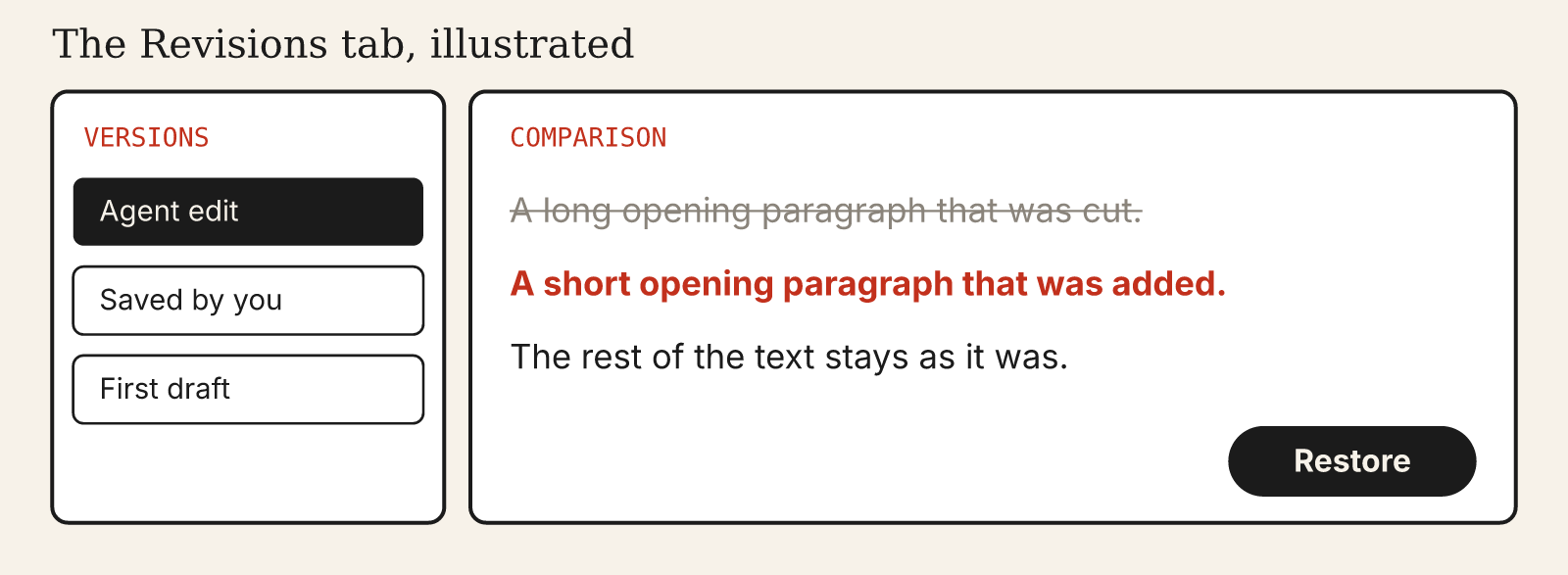
Every save and every agent edit is stored as a version.
- Open the Revisions tab.
- Pick a version from the list.
- Read the comparison. Text removed since that version is struck through, and text added since is marked.
- Choose Restore to bring that version back. The current text is kept as a version too, so a restore can be undone.
Versions are kept for as long as the post exists.
Preview
The Preview tab shows the post in your template. Switch the device size to check how it looks on a phone, a tablet and a desktop.
Sources
The Sources tab, available from the post tabs, shows the sources and claim checks. The research post in this series covers it.
Write a post yourself
Go to All posts, choose New post and then Open the editor. It gives you the full editor, your template and your blog address. Free allows 10 posts in total.
Deleting and unpublishing
Drafts that failed or never finished can be deleted from the post. A published post has an Unpublish button at the top.
Next step
Open a draft from your queue and compare it against its first version on the Revisions tab. It shows you what your agent changed between saves.
Sources
- Adyli editor and revisions guide · ady.li