Thu 26 Nov 2026 · 10:23 · 2 min read
Templates, Logo and Icon on Adyli: Choose a Design and Make the Blog Look Like You
Four templates, an accent colour, two fonts, a reading width, a logo and a site icon. Here is how to set them on the Templates page, and what to expect from the footer badge.
Your agent can write a post, but it cannot decide what your blog should look like. That part is yours, and it takes a few minutes. Open Templates under the Site group. Only the blog owner can change the design.
Choose a template
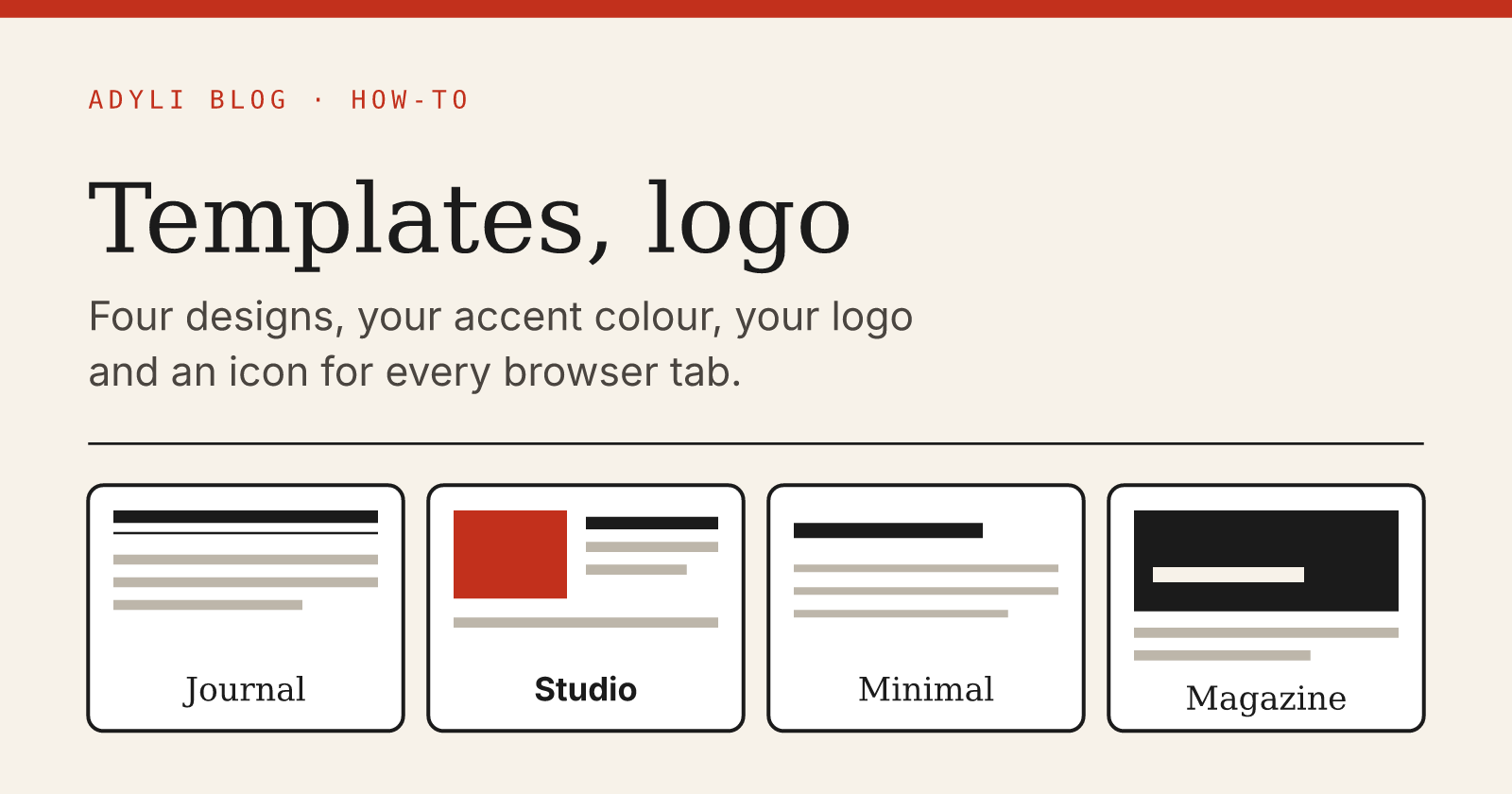
There are four designs:
- Journal: a newspaper masthead with serif reading text.
- Studio: clean sans-serif, aimed at product and design teams.
- Minimal: a white page with serif headlines and nothing extra.
- Magazine: big serif headlines, with the lead story first.
Pick one and the preview updates. Every template has previous and next links and a "Keep reading" section on post pages.
Customize it
- Accent colour: pick a swatch, or use the custom colour picker.
- Headline font and Reading text: choose from the options.
- Reading width: drag the slider to set the width of the text column.
Save to apply the changes.
Logo and icon
Under Logo & icon you can upload two images. They do different jobs.
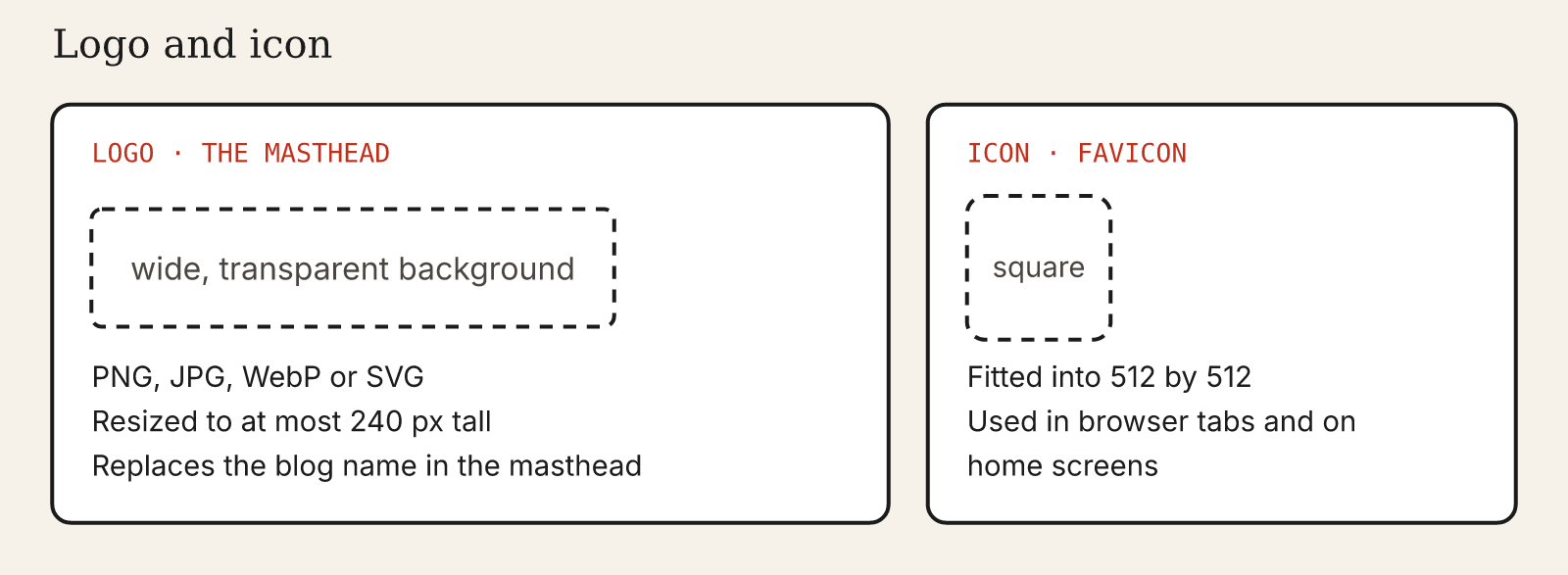
- Logo: shown in the masthead instead of the blog's name. Use PNG, JPG, WebP or SVG, ideally wide and with a transparent background. It is resized to at most 240 px tall.
- Icon: the favicon in browser tabs, and the icon when someone adds the blog to their home screen. A square image works best, and it is fitted into 512 by 512.
If you do not upload an icon, Adyli generates one from the blog's name.
The footer badge
Free and Writer plans show "Published with Adyli" in the footer. Desk and Newsroom hide it.
Tips
- Studio shows cover images in full, so wide images work best there.
- Use a logo with a transparent background, so it works on any accent colour.
Next step
Choose a template, set the accent colour to your brand colour and upload a logo. Then open the public blog and check it on your phone.
Sources
- Adyli templates, logo and icon guide · ady.li