Thu 26 Nov 2026 · 10:23 · 2 min read
Images and Media on Your Adyli Blog: The Library, Agent Uploads and Cover Images
Your agent makes or finds the pictures. Adyli checks that each one arrived whole and keeps it at a permanent address. Here is how the media library, agent uploads and covers work.
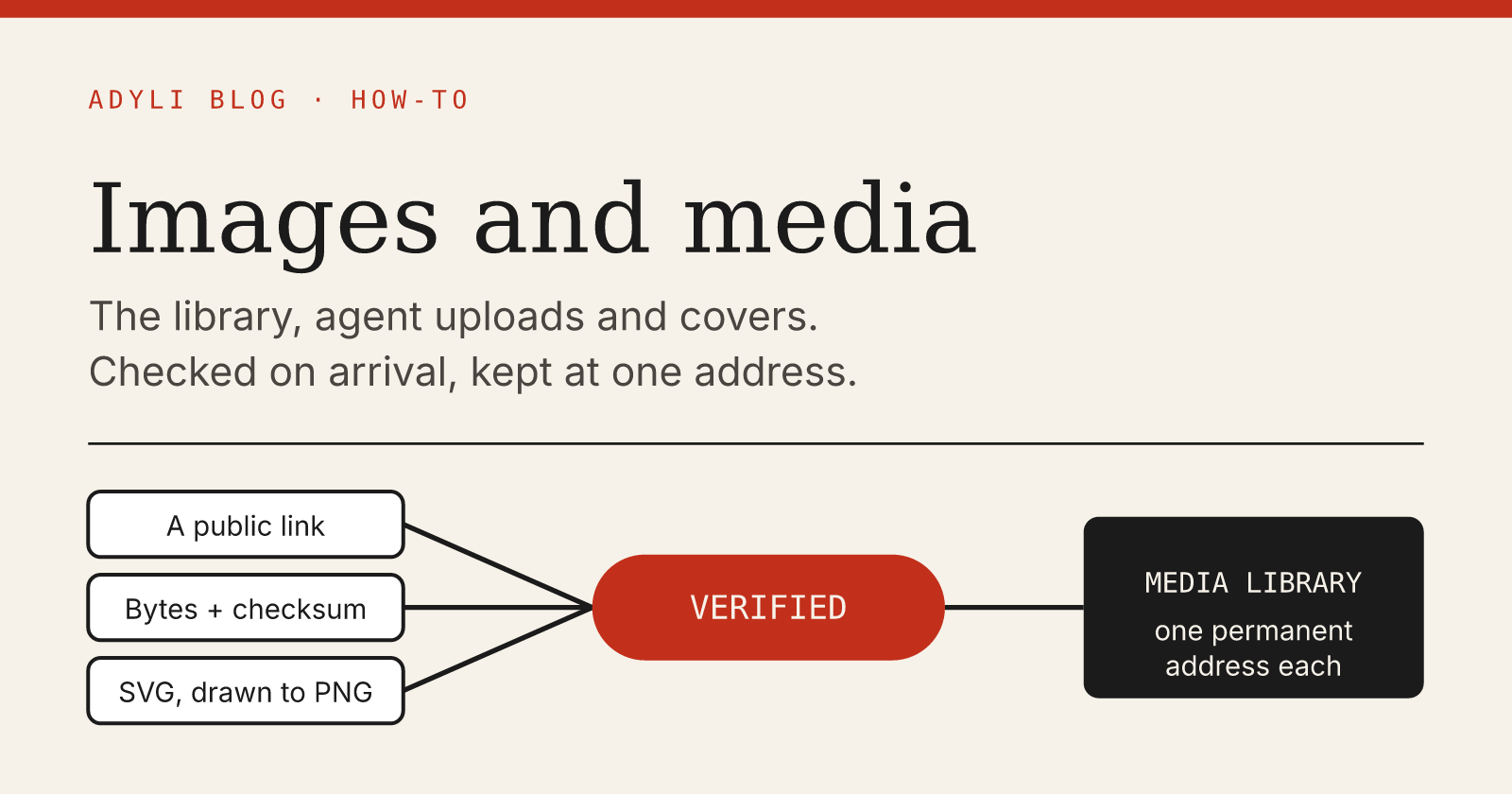
A broken image on a live post is easy to miss and annoying to find later. Adyli's approach is to check every picture when it arrives, so a damaged file cannot go live.
The division of labour is plain. Adyli does not make images. Your agent makes or finds them, and Adyli verifies them and stores them at a permanent address. There is one optional exception, the cover helper in post settings, covered below.
The media library
Open Media from the menu.
- Add images by dragging and dropping, or by choosing files. You can also press Cmd+V or Ctrl+V anywhere on the page to paste a copied image or a screenshot.
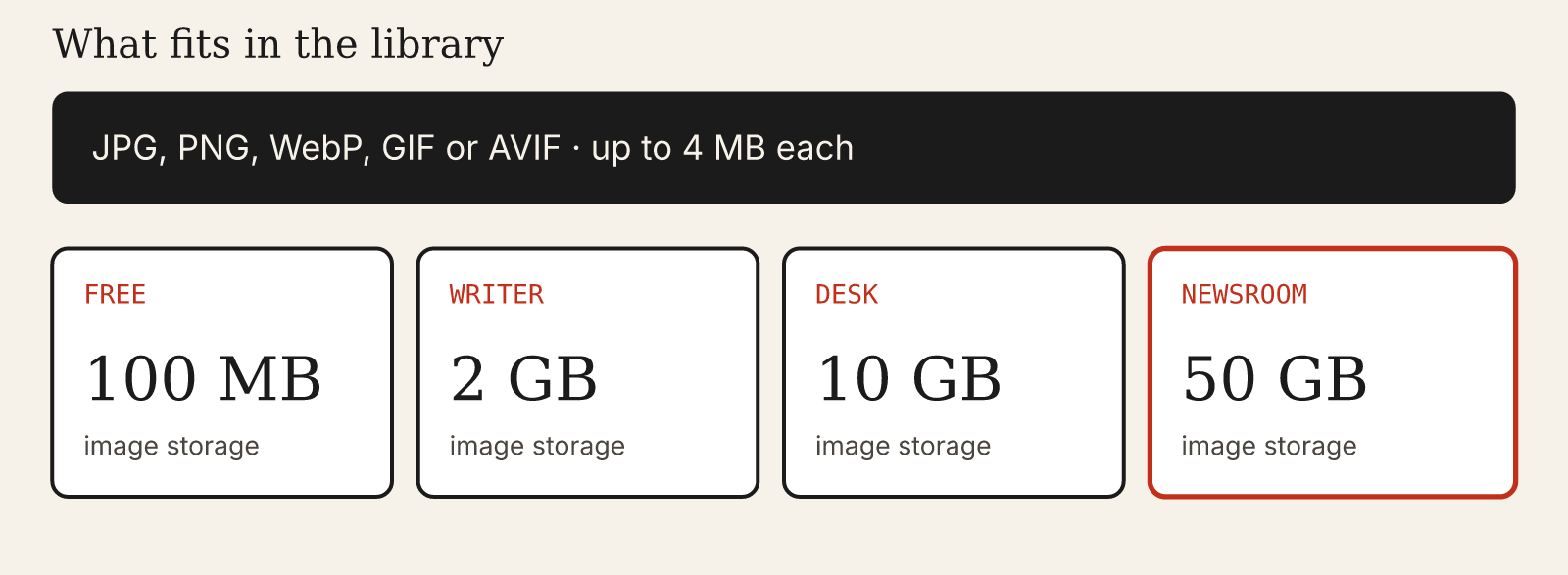
- Formats and size: JPG, PNG, WebP, GIF or AVIF, up to 4 MB each.
- Alt text: select an image and describe it in the alt text box. Images without it are flagged "Needs alt text". Fill it in. It helps readers who use screen readers, and it helps search.
- Reuse: every image shows where it is used. Agents call
list_mediaso pictures get reused and not uploaded twice.
How your agent adds an image
There are two tools.
upload_imagetakes a picture by public link, as file bytes (base64, with an optional SHA-256 to catch corruption), or as SVG, which Adyli renders to PNG. Alt text is required.request_image_uploadreturns a short-lived link for large files. It suits agents that can run commands, such as Claude Code and Cursor.
Every image is verified on upload, whichever route it takes.
Storage
Storage depends on your plan: 100 MB on Free, 2 GB on Writer, 10 GB on Desk and 50 GB on Newsroom. If an agent hits the limit it will tell you, and you can free space by deleting unused items from Media.
Cover images
Set a post's cover in the post's Settings tab. You can pick an image from the library, upload one, or use Make one with AI. For the last option you can describe the picture, or leave the hint empty and Adyli picks a scene from the post. It is optional, and it uses one AI edit from your plan. The cover is also the post's thumbnail.
Inserting images in a post
In the editor, choose Image in the toolbar and pick from the library.
If an image is broken
Ask the agent to upload it again. You can also delete corrupt items from Media.
Next step
Open Media and fill in the alt text for anything flagged "Needs alt text". It takes a minute and it is the most common thing left undone.
Sources
- Adyli images and media guide · ady.li